Introduction
Consistent FPS (frames per second) and ping in WoW is about more than just hardware. The right settings and computer maintenance can prevent issues like screen tearing, rubber banding, FPS drops, input lag, and more. Below you'll find a step-by-step approach to optimizing both FPS and ping.
Extra Disk Space
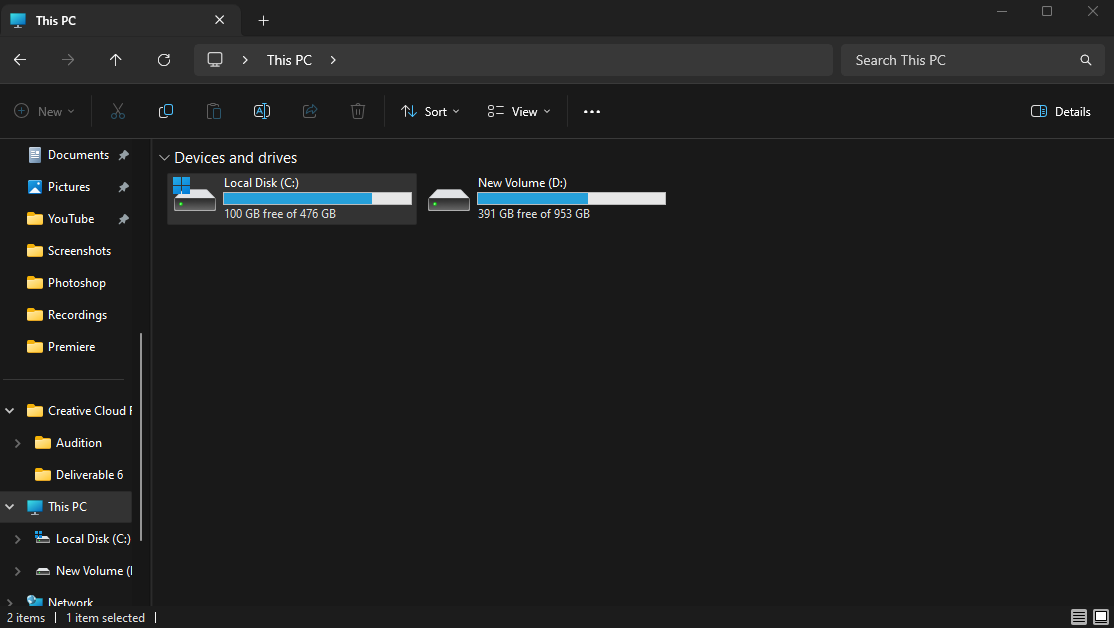
WoW and other programs need breathing room. On the disk that has World of Warcraft installed, ensure you have at least 50 gigabytes of free space. C: drives in particular store temporary files from many other applications. These can accumulate overtime so it's good to check from now and again.
The Users folder is a good place to start for Windows. Right click and select properties to determine which folder holds the most data. Applications like C cleaner will clear temp files and caches, this is usually not what you want.
OS and GPU Updates
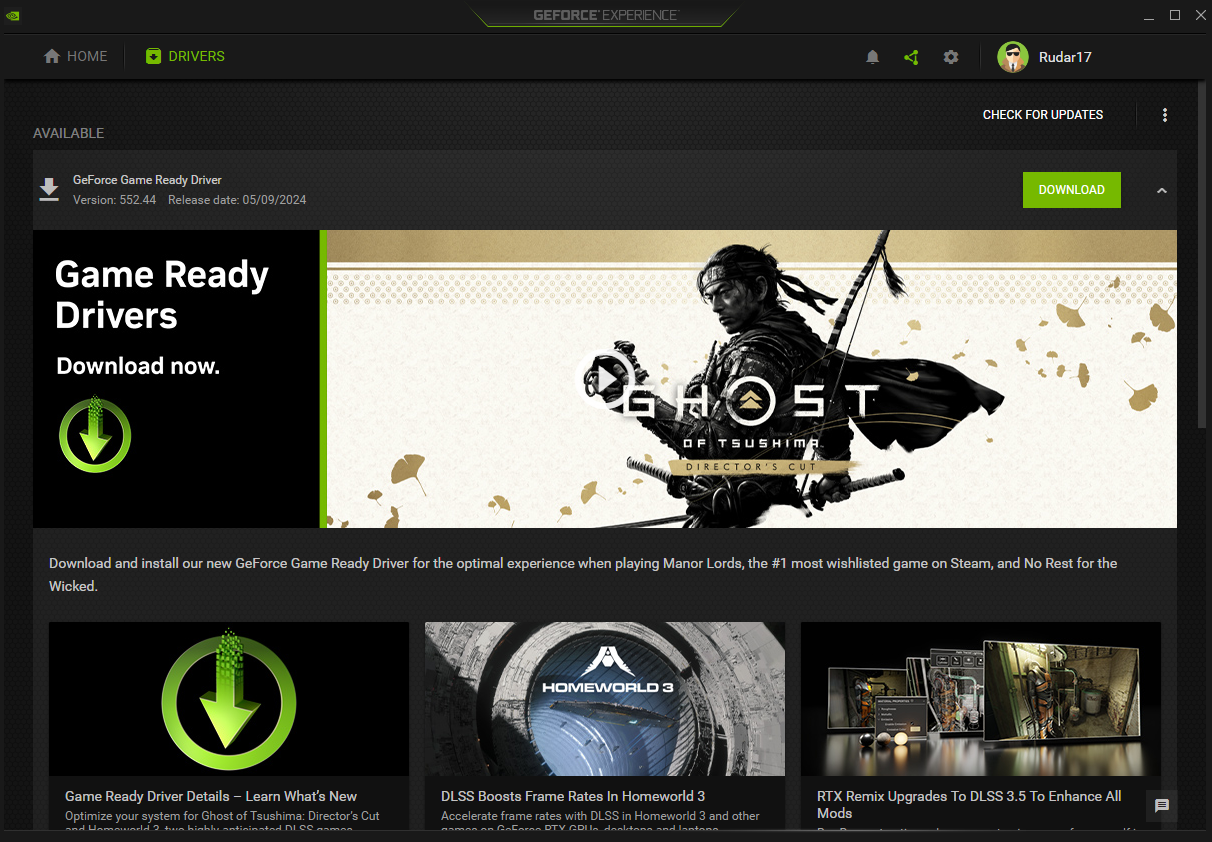
World of Warcraft expects the latest updates to your Operating System (Windows, MacOS) and Graphics Drivers. Outdated drivers are a common cause of FPS drops and crashes. Use official tools from NVIDIA, AMD, or Intel to keep your drivers current. Avoid third-party driver sites.
NVIDIA: NVIDIA App (formerly GeForce Experience).
AMD: Download the latest drivers from AMD's official website.
Intel: Use Intel's support site for graphics drivers.
Minor Tweaks
Close unnecessary programs before launching WoW. Apps like browsers or game launchers can use CPU, RAM, and bandwidth. Then ensure your computer is receiving maximum power. On Windows in Control Panel → Power Options, set the power plan to "High Performance". If you are using a laptop, ensure it is plugged in.
In-Game Settings
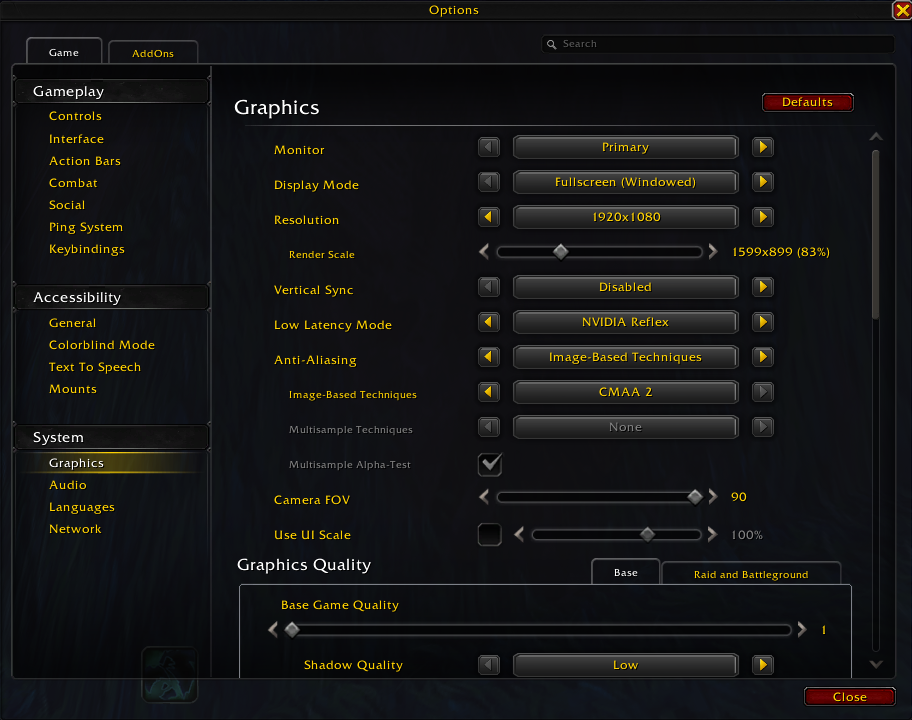
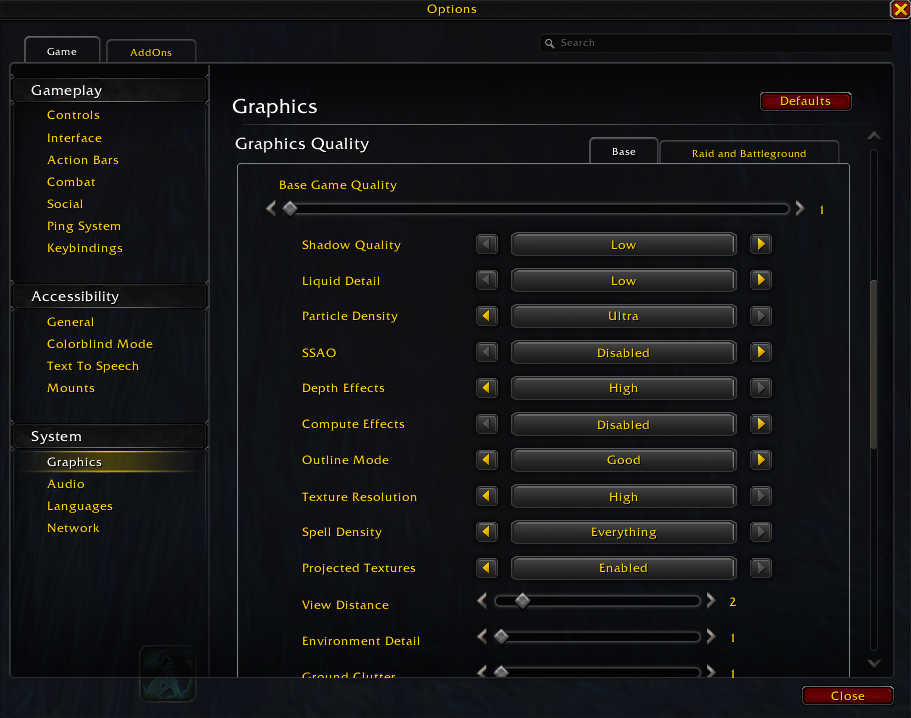
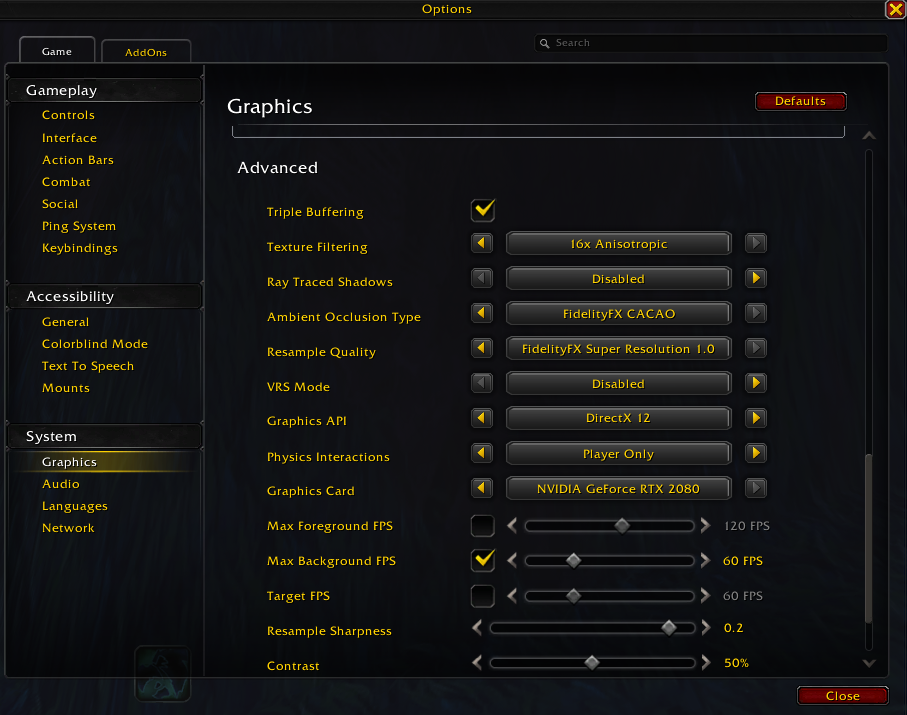
These settings balance visual quality and performance. Lowering settings for shadows, liquid detail, and render scale can have a big impact. Disable V-Sync unless you have screen tearing. Additionally, if you to squeeze even more performance, reduce Particle Density and Spell Density.
ms/ping
Use a wired Ethernet connection when possible. Wi-Fi is more prone to interference and packet loss, which can cause lag spikes. Enter ping google.com in a Command Prompt. If ping is high, restart your router or contact your ISP.
It's possible that your in-game ping is higher than your internet ping. Ensure the realm you are playing on is nearest to your location. A server like Tichondrius is a west coast server which will play smoother if you are located on the west coast of the US. If the difference is over 100ms between your google.com ping and in-game ping, consider switching realms and if the ping is over 150ms consider using a VPN like ExitLag.
Addons
As new game versions release often dependencies between addons and the game break. Ensure all addons are up to date with addon managers like CurseForge. If lua errors are popping up on your screen. Install the addons BugSack and BugGrabber. These addons will tell you exactly which addon is failing so that you can disable it.
RAM
It's a common issue to have low RAM. You can check both your RAM usage and capacity in the task manager. If your RAM usage is maxed out, you should consider upgrading your RAM before upgrading your CPU or GPU. This is generally going to be more cost effective. I recommend 32GB of RAM for most players. Ensure any RAM you buy is compatible with your motherboard.
Monitor Refresh Rate
Check your monitor's refresh rate. Many 144Hz monitors are stuck at 60Hz by default. On Windows, go to System → Display → Advanced display settings to fix this.
Recap
In conclusion, optimizing in-game FPS-Ping is a multi pronged problem, the answer is never as simple as buying a more beefy computer. Often a build up of multiple problems here and there can significantly reduce FPS and increase ms.